Thursday, December 08, 2005

Dynamic Client-Side Content without Reloading

One of the big drawbacks to implementing a solution using a thin-client application is the user interface is not as robust as it would be in a thick-client application. There are, however, things that can be done to greatly improve the user’s experience in a thin-client application. The following article discusses a technique that enables a website to have dynamic content without having to reload the page (aka post back to the server) to get that dynamic content.

Zip Codes and Data Entry
A common aspect of almost any website is a page where a user must enter an address. In the US we have these nifty things called Zip Codes (other countries have similar systems) that map to a city, state, and county. If a user knows the Zip Code of an address, an application should be able to lookup the corresponding city, state, and county for that address, thus keeping the user from having to enter it. Few thick-client and almost no thin-client applications actually implement this feature, however. The following is a description of how to implement this Zip Code information lookup feature for a website.

Database
In order to implement a Zip Code information lookup feature we need a database or XML file that contains the Zip Codes, Cities, Counties, and States in the US. This example uses a database table called ZipCode that has a ZipCode, a City, a State, and a County column. This example also uses a County table that contains a State and a County Name column.

The User Interface
The following is a screenshot of the HTML page that is the user interface for this example. In this example when a user enters a valid Zip Code, the City, State, and County fields will automatically be populated.
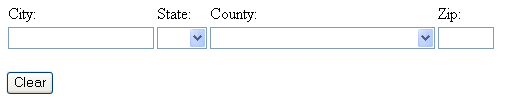


The following is the HTML used to create this form (the list of states has been truncated to save space):

<FORM name=frmMain id=frmMain>
<P>
<TABLE BORDER=0 CELLSPACING=1 CELLPADDING=1>
    <TR>
        <TD NOWRAP><label for=txtCity>City:</label></TD>
        <TD NOWRAP><label for=cboState>State:</label></TD>
        <TD NOWRAP><label for=cboCounty>County:</label></TD>
        <TD NOWRAP><label for=txtZip>Zip:</label></TD>
    </TR>
    <TR>
        <TD NOWRAP><INPUT id=txtCity name=txtCity maxlength=25 tabindex=2></TD>
        <TD NOWRAP><SELECT id=cboState name=cboState style="WIDTH: 50px" onchange="LoadCounties()" tabindex=3>
            <option></option>
            <option value="AK">AK</option>

            <option value="WY">WY</option>
        </SELECT></TD>
        <TD NOWRAP><SELECT id=cboCounty name=cboCounty style="WIDTH: 225px" tabindex=4><OPTION value=-1></OPTION></SELECT></TD>
        <TD NOWRAP><INPUT id=txtZip name=txtZip maxlength="5" size="5" onblur="LookupZip()" tabindex=1></TD>
    </TR>
</TABLE>
</P>
<P>
<INPUT type="BUTTON" onClick="ClearForm()" value=Clear tabindex=5>
</P>
</FORM>

Dynamic County List
The first thing to note in the HTML example above is only the State option list is populated. The County list is empty. Rather than download all of the counties for all of the states when the page loads, this page only downloads the counties for the select State when the State changes. The following JavaScript is used to dynamically load the County list:

//Removes all content from combo box
function RemoveAll(ComboBox)
{
    if (ComboBox == null)
        return;
    ComboBox.selectedIndex = -1;
    var ComboBoxLength = ComboBox.options.length;
    for (var i = ComboBoxLength - 1; i >= 0; i--)
        ComboBox.options.remove(i);
}

function LoadCounties()
{
    var objHTTP;
    var szURL = "GetCounties.asp?State=" +
        document.frmMain.cboState.value;
    var szHttpMethod = "GET";

    try
    {
        objHTTP = new ActiveXObject("Microsoft.XMLHTTP");
        objHTTP.Open(szHttpMethod, szURL, false);
        objHTTP.Send(null);
    }
    catch (errorObject)
    {
        alert("The following error occurred loading the Counties:\n" +
            "Error Code: " + errorObject.number + "\n" +
            "Error Description: " + errorObject.description);
        return;
    }

    if (objHTTP.status != 200)
    {
        alert("The following error occurred loading the Counties:\n" +
            "Status: " + objHTTP.status + " " + objHTTP.statusText);
        return;
    }
    
    // Load XML
    var objXmlDOM = objHTTP.responseXML;
    
    // Find All Counties
    objXmlDOM.setProperty("SelectionLanguage", "XPath");
    var objCounties = objXmlDOM.selectNodes("/Counties/County");
    
    // Remove existing counties
    RemoveAll(document.frmMain.cboCounty);
    
    // Create new options
    for (var i = 0; i < objCounties.length; i++)
    {
        var objOption = document.createElement("option");
        objOption.text = objCounties[i].getAttribute("Name");
        objOption.value = objCounties[i].getAttribute("Name");
        document.frmMain.cboCounty.add(objOption);
    }
}

The RemoveAll function removes all existing options from the list. The items are removed in reverse order to prevent the screen flicker that occurs in the control if they are removed in forward order. The LoadCounties function uses the Microsoft.XMLHTTP object to call the GetCounties.asp page. The GetCounties.asp page returns an XML document containing the names of all the counties in a give state. The LoadCounties function uses this data to create the county options. The following is the source code used in the GetCounties.asp page:

<%@ Language=VBScript %>
<%
Option Explicit

Response.Expires = 0
Response.CacheControl = "no-cache"
Response.AddHeader "pragma", "no-cache"
Response.ContentType = "text/XML"

' Constants
Const adUseClient = 3 ' As Integer
Const adCmdStoredProc = 4 ' As Integer
Const adExecuteStream = 1024 ' As Integer (&H400)
Const strConnectionString = "<Your DB Connection String Here>"

' Variables
Dim objDatabaseConnection ' AS ADODB.Connection
Dim objCommand ' AS ADODB.Command
Dim objStream ' As ADODB.Stream

' Begin

' Create Database Object
Set objDatabaseConnection = Server.CreateObject("ADODB.Connection")

' Open Connection
objDatabaseConnection.CursorLocation = adUseClient
objDatabaseConnection.Open strConnectionString

' Create Database Command
Set objCommand = Server.CreateObject("ADODB.Command")
Set objCommand.ActiveConnection = objDatabaseConnection
objCommand.CommandType = adCmdStoredProc
objCommand.CommandText = "GetCountiesXml('" & Left(Request.QueryString("State"), 2) & "')"

' Set up the Stream object
Set objStream = Server.CreateObject("ADODB.Stream")
objStream.Open

' Tell the Command object to use the Stream.
objCommand.Properties("Output Stream").Value = objStream

' Execute the command
objCommand.Execute , , adExecuteStream

' Return stream results
Response.Write "<?xml version=""1.0"" ?>"
Response.Write objStream.ReadText

' Clean Up
objStream.Close
Set objStream = Nothing
Set objCommand = Nothing
objDatabaseConnection.Close
Set objDatabaseConnection = Nothing

Response.End
%>

This page calls the GetCountiesXml stored procedure on the database and returns the results to the caller. The following is the GetCountiesXml stored procedure:

-- Description: Returns an XML document containing the list of
--              Counties for a given State.
-------------------------------------------------------------------
CREATE PROCEDURE [dbo].[GetCountiesXml]
    @State CHAR(2) = ''
AS
BEGIN
    SELECT 1 AS Tag,
        NULL AS Parent,
        NULL AS [Counties!1],
        NULL AS [County!2!Name]
    UNION
    SELECT 2 AS Tag,
        1 AS Parent,
        NULL AS [Counties!1],
        '' AS [County!2!Name]
    UNION
    SELECT 2 AS Tag,
        1 AS Parent,
        NULL AS [Counties!1],
        Name AS [County!2!Name]
    FROM County
    WHERE State = @State
    ORDER BY [County!2!Name]
    FOR XML EXPLICIT
END

The following is an example XML document generated by the GetCounties.asp page:

<?xml version="1.0" ?>
<Counties>
    <County Name=""/>
    <County Name="HAWAII"/>
    <County Name="HONOLULU"/>
    <County Name="KAUAI"/>
    <County Name="MAUI"/>
</Counties>

This technique reduces the amount of data that has to be downloaded to the client when the page is first loaded, thus speeding up the page. It also reduces the overall network traffic.

Auto-filled City, State, and County
The next thing to note about the HTML code shown above is that when the user leaves the txtZip element, the LookupZip method is called. The code for this method is shown below:

function LookupZip()
{
    var strZipCode;
    var ZipCodeRegularExpression;
    
    ZipCodeRegularExpression = new RegExp("^\\d{5}$");
    strZipCode = document.frmMain.txtZip.value;
    if ((strZipCode.match(ZipCodeRegularExpression) != null) &&
        ((document.frmMain.txtCity.value.length == 0) ||
        (document.frmMain.cboState.value.length == 0) ||
        (document.frmMain.cboCounty.value.length == 0)))
    {
        var objHTTP;
        var szURL = "GetZipInfo.asp?ZipCode=" + strZipCode;
        var szHttpMethod = "GET";
    
        try
        {
            objHTTP = new ActiveXObject("Microsoft.XMLHTTP");
            objHTTP.Open(szHttpMethod, szURL, false);
            objHTTP.Send(null);
        }
        catch (errorObject)
        {
            // Ignore Errors
            return;
        }

        if (objHTTP.status != 200)
        {
            // Ignore Errors
            return;
        }
    
        // Load XML
        var objXmlDOM = objHTTP.responseXML;
        objXmlDOM.setProperty("SelectionLanguage", "XPath");

        // Find City
        var objCity = objXmlDOM.selectSingleNode("/ZipCodeInfo/City")
        if (objCity != null)
        {
            if (document.frmMain.txtCity.value.length == 0)
            {
                document.frmMain.txtCity.value = objCity.text;
            }
        } // Find City
        
        // Find State
        var objState = objXmlDOM.selectSingleNode("/ZipCodeInfo/State")
        if (objState != null)
        {
            if (document.frmMain.cboState.value.length == 0)
            {
                document.frmMain.cboState.value = objState.text;
                
                // Reset counties
                LoadCounties();
            }
        } // Find State
        
        // Find County
        var objCounty = objXmlDOM.selectSingleNode("/ZipCodeInfo/County")
        if (objCounty != null)
        {
            if ((document.frmMain.cboCounty.value.length == 0) &&
                (document.frmMain.cboState.value == objState.text))
            {
                document.frmMain.cboCounty.value = objCounty.text;
            }
        } // Find County
        
    } // if ((strZipCode.match(ZipCodeRegularExpression) != null)
}

This method first verifies the Zip Code entered is a five-digit string. Then it uses the Microsoft.XMLHTTP object to call the GetZipInfo.asp page which returns an XML document containing the City, State, and County for the given Zip Code. It then fills in the City, State, and County elements on the form with the data returned. Only blank fields are populated. Unlike the LoadCounties function, the LookupZip function is not critical to the operation of the page, so it ignores all errors. The GetZipInfo.asp page is pretty much the same as the GetCounties.asp page with the exception that is calls the GetZipInfo stored procedure instead of the GetCountiesXml stored procedure. The following is the code for the GetZipInfo stored procedure:

-- Description: Returns an XML document containing the City,
--              State, and County for a given Zip Code.
-------------------------------------------------------------------
CREATE PROCEDURE [dbo].[GetZipInfo]
    @ZipCode CHAR(5)
AS
BEGIN
    SELECT TOP 1 City, County, State
    FROM ZipCode AS ZipCodeInfo
    WHERE ZipCode = @ZipCode
    FOR XML AUTO, ELEMENTS
END

The following is an example XML document generated by the GetZipInfo.asp page:

<?xml version="1.0" ?>
<ZipCodeInfo>
    <City>HAZELWOOD</City>
    <County>SAINT LOUIS</County>
    <State>MO</State>
</ZipCodeInfo>


Caveats
  • The version shown in this example only works for IE. This can be done in the other browsers (Firefox, Opera, etc.) using the XMLHttpRequest object instead of the Microsoft.XMLHTTP object.

  • There may be security issues associated with receiving data in client-side JavaScript. This technique may be appropriate for intranet sites, but not for internet sites depending on the security requirements of the system.

Thursday, December 01, 2005

Debugging VB 6.0 Code From Visual Studio 2003

It is not uncommon to need to call a VB 6.0 ActiveX DLL from a .NET application, especially if you are doing new development for an existing software system. The .NET framework has some nice features that makes calling VB 6.0 code from .NET code fairly painless. One thing that is a little confusing, however, is how to debug VB 6.0 code if it is called from a .NET application. This article will hopefully shed some light on this mystery.

Building Your VB 6.0 Code
In order for Visual Studio 2003 to be able to debug VB 6.0 code, it needs to have a Program Debug Database file (sometimes called a debug symbol file) for the code. Unfortunately Visual Basic 6.0 does not create this by default, but it is easy to get VB to do this. Using VB 6.0 open the project you want to be able to debug in Visual Studio 2003. Go to the Project Properties dialog and select the Compile tab.


Check the Create Symbolic Debug Info checkbox and press OK. When the project is rebuilt, a Program Debug Database file with a pdb extension will be generated. This is the file Visual Studio 2003 will use to debug the VB 6.0 code.

Enabling Unmanaged Code Debugging
The next step is to enable unmanaged code debugging (sometimes called native code debugging) in your Visual Studio 2003 project. In the project properties form for your Visual Studio 2003 project, select the Debugging page and check the “Unmanaged code debugging” checkbox. This allows Visual Studio 2003 to debug VB 6.0 code (as long as a Program Debug Database file is available).


Enabling this option really slows down the debugger. Depending on your situation, it may be wise to create two different debug configurations, one for debugging managed (.NET) code only and one for debugging both managed and unmanaged (VB 6.0) code. I typically call the configuration for debugging both managed and unmanaged code “Native Debug”. You can create this new configuration using the Configuration Manager. To get to the Configuration Manager click the Configuration Manager button. When the Configuration Manager is displayed, select in the Active Solutions Configuration dropdown to create this new configuration. Be sure to select the existing Debug configuration on the Copy Setting from dropdown list when you create your Native Debug configuration.

Setting a Breakpoint
Once the Unmanaged code debugging option has been selected you can set breakpoints in the VB 6.0 code. To set a breakpoint in VB 6.0 code, you will have to manually open the source file where you want to place the breakpoint. Select File -> Open -> File… from the Visual Studio 2003 menus and browse to the source file you want to set a breakpoint in. You can create a breakpoint in this source file the same way you create breakpoints in .NET managed code.

Stepping Around
If the application you are debugging uses early binding to create your VB 6.0 object, you can use command such as Step Into, Step Out, etc. to go between managed .NET code and unmanaged VB 6.0 code. If the application uses late binding you will not be able to use Step Into and similar command to go from managed .NET code to unmanaged VB 6.0 code. In these situations you will have to set a breakpoint in the unmanaged VB 6.0 code.

Debugging a Running Process
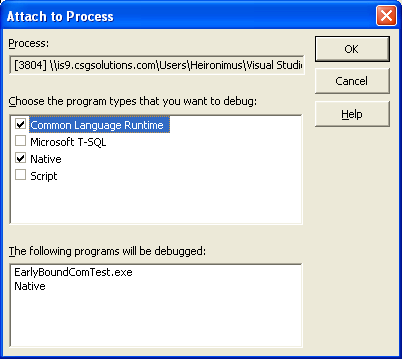
To debug a program that contains both managed .NET code and unmanaged VB 6.0 code that is already running select Tools -> Debug Processes… from the Visual Studio 2003 menu. Select your process and press the Attach… button. When the Attach to Process dialog is displayed, be sure that both Common Language Runtime and Native options are selected.


Once you are back in the Visual Studio, you can create breakpoints and step through both your managed and unmanaged code.

Tuesday, November 29, 2005

Dynamic IN Clauses in SQL Server 2000

Background
Sometimes it is necessary to limit the results of a SELECT statement by some list of values. This is typically done using the IN operator. The following is an example query that uses the IN operator:

SELECT *
FROM TestOrder
WHERE OrderDateTime BETWEEN '1/1/2005' AND '1/4/2005' AND
    State IN ('MO', 'TX')

Often both the list of values used to limit the results of a SELECT statement and the size of that list is dynamic. Consider an application that allows users to search for orders by state. If this application allows users to search for orders in multiple states at the same time, the number of states selected could be different for each search.

This is not a big deal if the application dynamically generates the SQL statements, but if the application is required to use stored procedures for all of its data access, these dynamic lists can cause trouble. In SQL Server 2000 there is no mechanism for passing in an array of values to a stored procedure, so other ways must be employed.

Dynamically Generate SQL in Stored Procedure
One solution is to dynamically generate SQL in the stored procedure. The following is a stored procedure that makes use of this technique:

CREATE PROCEDURE DynamicFindOrders1
    @StartDateTime DATETIME,
    @EndDateTime DATETIME,
    @StateList VARCHAR(7500)
AS
BEGIN
    SET NOCOUNT ON;

    DECLARE @DynamicSQL VARCHAR(8000)

    SET @DynamicSQL = 'SELECT * ' +
        'FROM TestOrder ' +
        'WHERE OrderDateTime BETWEEN ''' +
            CONVERT(VARCHAR(10), @StartDateTime, 101) +
            ''' AND ''' +
            CONVERT(VARCHAR(10), @EndDateTime, 101) + ''' AND ' +
            'State IN (' + @StateList + ')'

    SET NOCOUNT OFF;

    EXECUTE (@DynamicSQL)
END

The following is an example call to this stored procedure:
EXEC DynamicFindOrders1 '1/1/2005', '1/4/2005', '''MO'', ''TX'''

This solution works, but some of the benefits of stored procedures are lost when dynamic SQL is introduced. Another version of using dynamic SQL is shown below:

CREATE PROCEDURE DynamicFindOrders2
    @StartDateTime DATETIME,
    @EndDateTime DATETIME,
    @StateList VARCHAR(3000)
AS
BEGIN
    SET NOCOUNT ON;

    DECLARE @DynamicSQL NVARCHAR(4000)

    SET @DynamicSQL = 'SELECT * ' +
        'FROM TestOrder ' +
        'WHERE OrderDateTime BETWEEN @StartDateTime AND @EndDateTime AND ' +
            'State IN (' + @StateList + ')'

    SET NOCOUNT OFF;

    EXECUTE sp_executesql @DynamicSQL,
        N'@StartDateTime DATETIME, @EndDateTime DATETIME',
        @StartDateTime, @EndDateTime
END

The following is an example call to this stored procedure:
EXEC DynamicFindOrders2 '1/1/2005', '1/4/2005', '''MO'', ''TX'''

Using a User Defined Function
Another way to dynamically restrict the results of a SELECT statement in a stored procedure is through the use of a user defined function. The following is an example function that returns True (1) if a value appears in a list and False (0) if the value does not appear in the list.

-- Purpose: Indicates if the input value is in the list of values.
-- Returns: True if the indicated value is in the list of values.
-- Arguments:
-- InputValue - Value to look for
-- ListOfValues - Delimeter list of values
-- Delimeter - Delimeter character, cannot be a space (default: ,)
-------------------------------------------------------------------
CREATE FUNCTION IsValueInList(
    @InputValue VARCHAR(7996),
    @ListOfValues VARCHAR(7996),
    @Delimeter VARCHAR(2) = ',')
RETURNS BIT AS
BEGIN
    RETURN CASE WHEN CHARINDEX(@Delimeter + @InputValue + @Delimeter,
            @Delimeter + @ListOfValues + @Delimeter) > 0 THEN 1
        ELSE 0
    END
END

This function uses a comma character (,) as its delimiter by default. The delimiter cannot appear as part of a value in the @ListOfValues argument. A space character cannot be used as a delimiter. The @ListOfValues argument cannot have any white space between items in the list. For example, “MO,TX,MN” would be an acceptable @ListOfValues, but “MO, TX, MN” would not work.

Using this function, the stored procedure used above can be rewritten as follows:

CREATE PROCEDURE FunctionFindOrders1
    @StartDateTime DATETIME,
    @EndDateTime DATETIME,
    @StateList VARCHAR(7996)
AS
BEGIN
    SELECT *
    FROM TestOrder
    WHERE OrderDateTime BETWEEN @StartDateTime AND @EndDateTime AND
        dbo.IsValueInList(State, @StateList, DEFAULT) = 1
END

The following is an example call to this stored procedure:
EXEC FunctionFindOrders1 '1/1/2005', '1/4/2005', 'MO,TX'

This approach eliminates the dynamic SQL in the stored procedure, but it also causes the stored procedure to use a less efficient query plan. Assuming there is an index on the OrderDateTime and State columns, the dynamic SQL solution will often make use of both indexes (i.e. use index seeks). However, in the case of the user defined function only the OrderDateTime index can be used. An index scan (SQL Server reads every row in the index) is performed on the State index to resolve the “dbo.IsValueInList(State, @StateList, DEFAULT) = 1” condition.

Converting List to Table
Another approach is to convert the list of values into an in-memory table and join against it to restrict the results of the SELECT statement. The following user defined function demonstrates how to convert a delimited string into an in-memory table:

-- Purpose: Converts an input string into a single value table.
-- Returns: Table with one VARCHAR(1000) column called Value.
-- Arguments:
-- InputString - String to convert
-- Delimeter - Delimeter character, cannot be a space (default: ,)
-- ExcludeEmpty - If true, do not include empty items (default: False)
-- TrimValues - If true, leading and trailing spaces are removed
-- (default: True)
-------------------------------------------------------------------
CREATE FUNCTION ConvertStringToTable(
    @InputString VARCHAR(8000),
    @Delimeter VARCHAR(2) = ',',
    @ExcludeEmpty BIT = 0,
    @TrimValues BIT = 1)
RETURNS @Values TABLE (Value VARCHAR(1000)) AS
BEGIN

DECLARE @DelimitedList VARCHAR(8000)
DECLARE @Continue BIT
DECLARE @StartPos INTEGER
DECLARE @TextLength INTEGER
DECLARE @DelimeterPosition INTEGER
DECLARE @TextValue VARCHAR(1000)
DECLARE @DelimeterLength INTEGER

IF @TrimValues = 1 BEGIN
    SET @DelimitedList = LTRIM(RTRIM(@InputString))
END ELSE BEGIN
    SET @DelimitedList = @InputString
END

IF LEN(@DelimitedList) = 0 BEGIN
    SET @Continue = 0
END
ELSE BEGIN
    IF LEN(@Delimeter) < 1 BEGIN
        -- Cannot use '', ' ', etc. for a delimeter
        SET @Delimeter = ','
    END
    SET @Continue = 1
    SET @StartPos = 1
    SET @TextLength = LEN(@DelimitedList)
    SET @DelimeterLength = LEN(@Delimeter)
END

WHILE @Continue = 1 BEGIN
    SET @DelimeterPosition = CHARINDEX(@Delimeter,
        SUBSTRING(@DelimitedList, @StartPos,
        @TextLength - @StartPos + @DelimeterLength))
    IF @DelimeterPosition > 0 BEGIN
        IF @TrimValues = 1 BEGIN
            SET @TextValue = RTRIM(LTRIM(SUBSTRING(@DelimitedList,
                @StartPos, (@DelimeterPosition - 1))))
        END ELSE BEGIN
            SET @TextValue = SUBSTRING(@DelimitedList, @StartPos,
                (@DelimeterPosition - 1))
        END
        SET @StartPos = @DelimeterPosition + @StartPos +
            (@DelimeterLength - 1)
    END
    ELSE BEGIN
        IF @TrimValues = 1 BEGIN
            SET @TextValue = RTRIM(LTRIM(SUBSTRING(@DelimitedList,
                @StartPos, (@TextLength - @StartPos) +
                @DelimeterLength)))
        END ELSE BEGIN
            SET @TextValue = SUBSTRING(@DelimitedList, @StartPos,
                (@TextLength - @StartPos) + @DelimeterLength)
        END
        SELECT @Continue = 0
    END
    IF @ExcludeEmpty = 0 OR @TextValue <> '' BEGIN
        INSERT INTO @Values VALUES(@TextValue)
    END
END -- WHILE @Continue = 1 BEGIN

RETURN
END

Unlike the IsValueInList function shown above, this function allows white space in-between values. The following is the example stored procedure rewritten to use the ConvertStringToTable function:

CREATE PROCEDURE FunctionFindOrders2
    @StartDateTime DATETIME,
    @EndDateTime DATETIME,
    @StateList VARCHAR(8000)
AS
BEGIN
    SELECT *
    FROM TestOrder
        INNER JOIN dbo.ConvertStringToTable(@StateList, DEFAULT, 1, 1)
            AS StateList ON StateList.Value = TestOrder.State
    WHERE OrderDateTime BETWEEN @StartDateTime AND @EndDateTime
END

The following is an example call to this stored procedure:
EXEC FunctionFindOrders2 '1/1/2005', '1/4/2005', 'MO,TX'

This approach eliminates the dynamic SQL in the stored procedure, and also performs much better than the IsValueInList function.

In a rather unscientific test, I found that the two dynamic SQL stored procedures perform the best. The ConvertStringToTable stored procedure performs almost as well as the dynamic SQL, but it spends a fair amount of CPU resources to convert input string into a table. The IsValueInList stored procedure performs horribly compared to the other three options.

Things to Think About

Dynamically Generate SQL in Stored Procedure
Pros
  • SQL Query Optimizer can make best use of available indexes
  • Works well with large amounts of data
Cons
  • May be susceptible to SQL Injection attack

Using the IsValueInList User Defined Function
Pros
  • Not susceptible to SQL Injection attack
  • Avoids use of dynamic SQL
Cons
  • SQL Server will have to perform index scans or table scans
  • Does not work well with large amounts of data

Using the ConvertStringToTable User Defined Function
Pros
  • Not susceptible to SQL Injection attack
  • Avoids use of dynamic SQL
Cons
  • Takes time to convert the string into an in-memory table

Other Techniques to Consider
  • Consider restricting the number of items that can be searched on to a fixed amount so that dynamic SQL will not have to be used.